EmojiClip

EmojiClip Browser Extension

One extension, two modes: open the classic popup from the toolbar, or press Alt+Shift+E to insert emoji with fast mode

EmojiClip
EmojiClip Browser Extension

One extension, two ways to use it

Use the classic popup when you want the full picker, or open fast mode while typing without breaking your flow.

Mode one

Classic popup

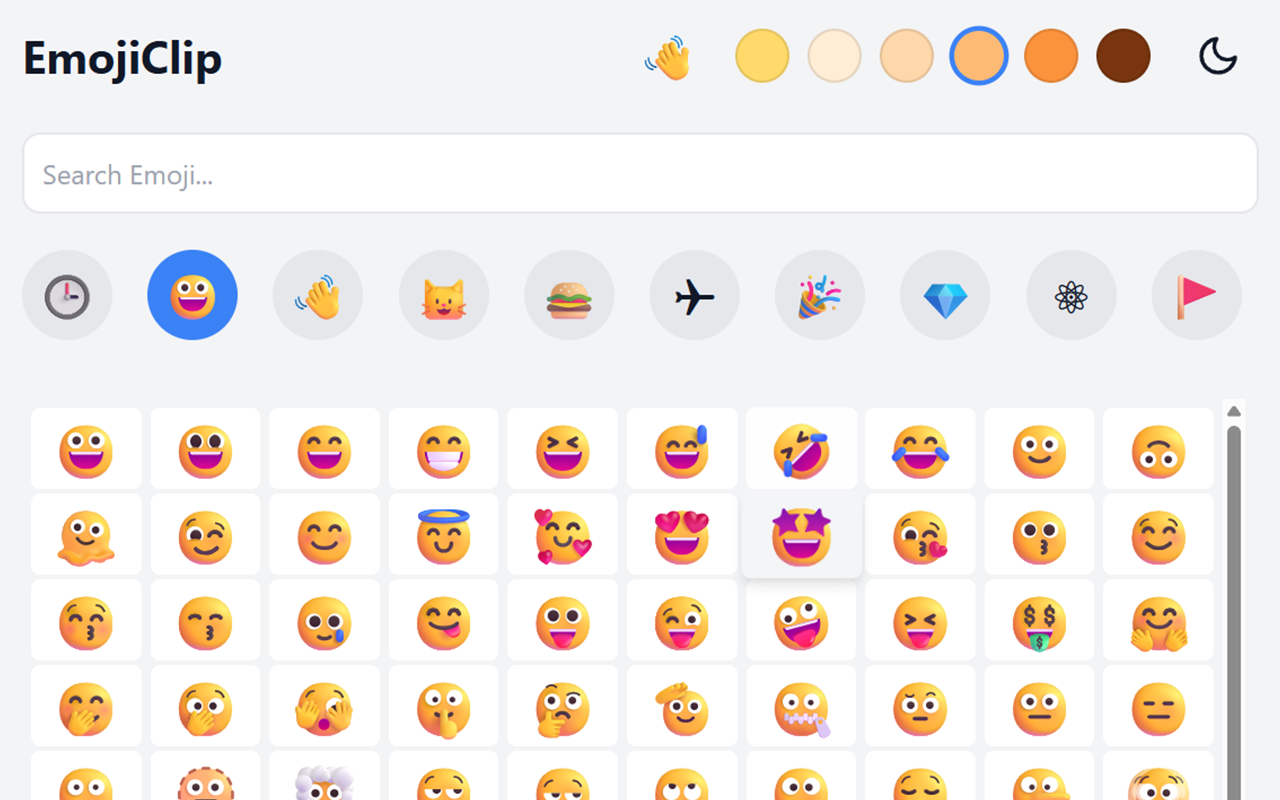
Click the browser toolbar icon to open it. Search in English, browse categories, choose a skin tone, and return to recent emoji. Open the emoji clipboard to collect several emoji and copy the full sequence at once.

Best for browsing, choosing, and arranging several emoji

Mode two

Fast mode

In a web text field, press Alt+Shift+E (⌥+Shift+E on macOS) to open the palette near your pointer. Search and press Enter to insert at the original caret; arrow keys, Tab, and Esc also work.

Best for instant insertion in chats, documents, and forms

More useful features

Command palette insertion

Press Alt+Shift+E, search in English, and insert at the original caret

Categories

Browse emojis by category to quickly find what you need

Recently used

Quickly return to emoji copied on this device and clear the list whenever you want.

Classic popup

Click the toolbar icon to use search, categories, skin tones, recent items, and dark mode together

Emoji clipboard

Open the bottom drawer from the top icon, collect several emoji, and copy the full sequence in one click

Popup settings

Configure the shortcut, auto-insert, recent-item count, and emoji size

Skin Tone Selection

Personalize your emojis by choosing your preferred skin tone

Dark Mode

Easy on your eyes with full dark mode support

Completely Free

No ads, no hidden fees, just enjoy

🔍
😀

Install Extension

One extension, two modes: open the classic popup from the toolbar, or press Alt+Shift+E to insert emoji with fast mode

Installation Guide

Choose your browser and follow the steps to easily install the EmojiClip extension

Google Chrome

1 Click the "Install from Chrome Store" button above
2 Click "Add to Chrome" on the Chrome Web Store page
3 Confirm installation and enjoy convenient emoji copying

Mozilla Firefox

1 Click "Install from Firefox Store" button
2 Click "Add to Firefox" on the Mozilla Add-ons page
3 Confirm installation in the popup window

Microsoft Edge

1 Click the "Install from Edge Store" button
2 Click "Get" on the Microsoft Edge Add-ons page
3 Confirm adding the extension in the popup window

Keyboard Shortcuts

The default shortcut opens fast mode; the toolbar icon opens the classic popup

Windows/Linux: Alt + Shift + E
macOS: ⌥ + Shift + E

The shortcut works only while the browser has focus. Check conflicts or reassign it in extension shortcut settings.

Mobile Support

EmojiClip is available on mobile only through Firefox for Android. Chrome and Edge mobile do not support extensions.

Firefox for Android: Firefox for Android 120+ - The only mobile browser that supports extensions